
Setup overview
Complete these steps, return to the workbench, and create a partner to start assigning tasks. Workspace and embedding model setup are only needed for a local knowledge base.
Learn how to install Ncurator, configure AI models, and add local sources to your knowledge base.
Complete these steps, return to the workbench, and create a partner to start assigning tasks. Workspace and embedding model setup are only needed for a local knowledge base.
Get an API key from your provider, select that provider, and save your configuration.
Try a free model first, or create your own API key with a supported provider.
You can select a free model directly in the desktop app without setting up an API key. Free services do not guarantee reliability or privacy. Do not send sensitive data.
For regular use, create your own API key. The guides below cover the providers available in Ncurator Desktop.
How to get an API keyIn Settings, open Models and click Add configuration.
For a standard API key, choose Recommended, select its provider, paste the key, and save.
Recommended mode includes the service URL, so you do not need to enter it yourself.
Download a local embedding model to index and search your knowledge base. If the download fails, try without a VPN.
Click Download and wait until the model is installed. Knowledge base search can reduce the tokens needed to consult local material.
Add local folders or global web sources for Ncurator to search. Skip this step if you do not need a knowledge base.
In Settings, open Workspace → Files, click Add folder, and choose a local folder. Each folder appears as a top-level location; a named workspace is no longer required.
After adding a folder, its file structure appears on the right. Remove a location using the control beside its top-level entry.
Open the Web tab and click Add web pages. Paste one URL per line. Web sources are shared globally rather than attached to a folder.
When folders or web pages change, click Check for updates, then Update index. Indexing requires an installed embedding model.
Choose your provider and follow the steps to create an API key.
Top up your account if needed, then create an API key.
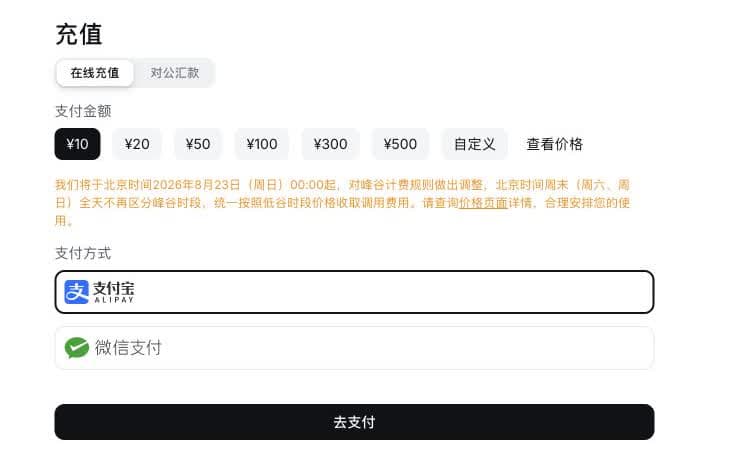
Choose an amount and payment method, then proceed to payment.
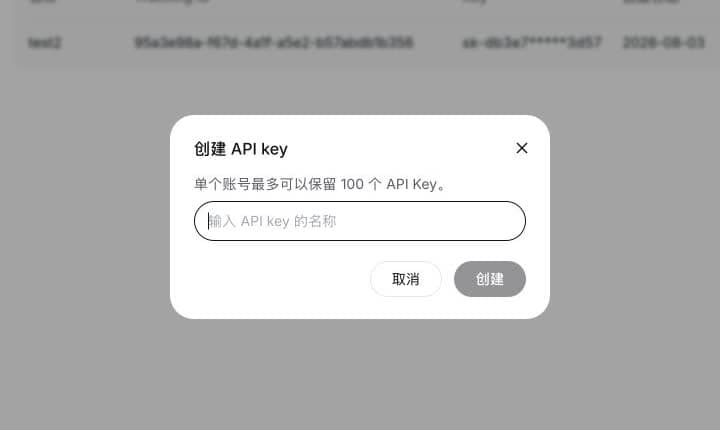
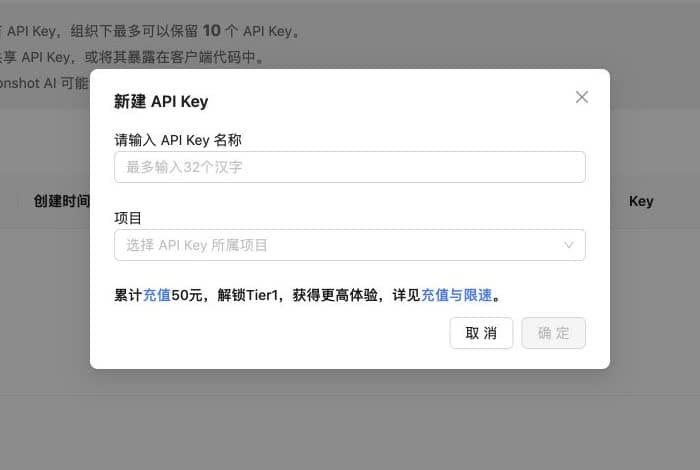
Enter a key name and create it. The full key is shown only once, so copy it immediately.
Activate Alibaba Cloud Model Studio, top up if needed, and create an API key.
Open Model Studio in the China (Beijing) region. Accept the service agreement if prompted. If no agreement appears, the service is already active.

Complete Alibaba Cloud identity verification first. In Expenses and Costs, open the account top-up page, choose an amount and payment method, and confirm.

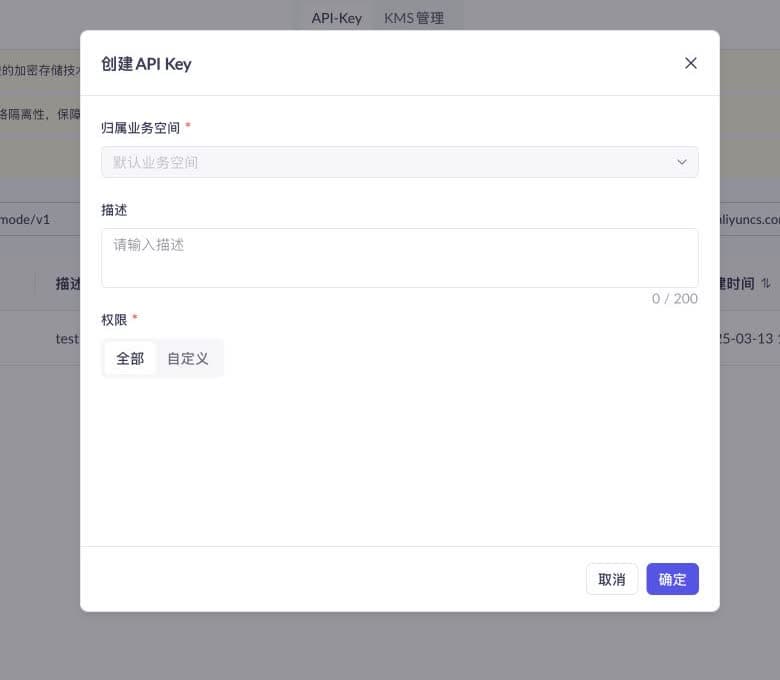
Keep Default workspace, choose All permissions, and confirm. The full key is shown only once, so copy it immediately.
Complete verification and top up if needed, then create an API key.
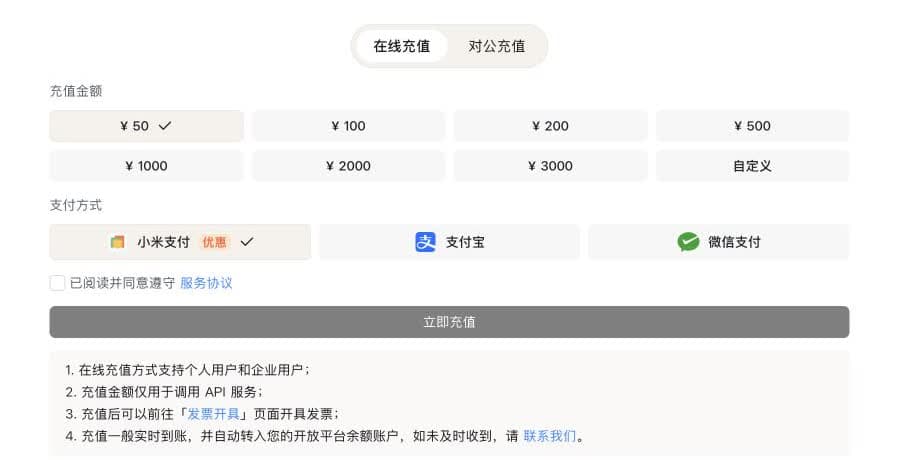
Complete identity verification as prompted. Choose an amount and payment method, accept the service agreement, and click Top up now.
Enter a key name, confirm creation, and copy the new key immediately.
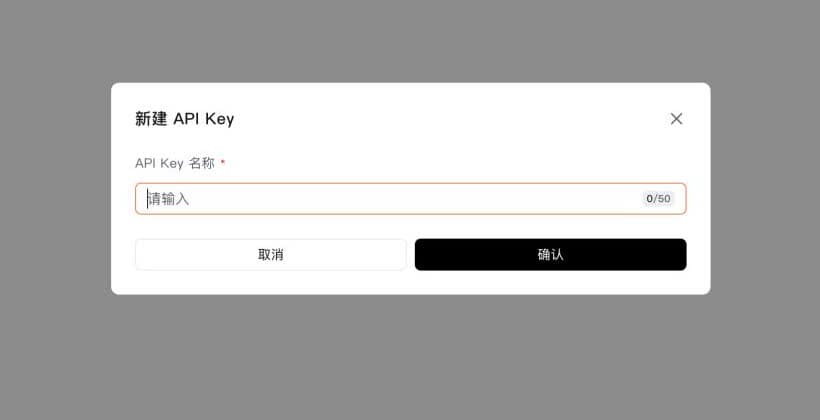
Top up your account if needed, then create an API key.
In Finance → Top up account, choose an amount and payment method, then confirm payment.
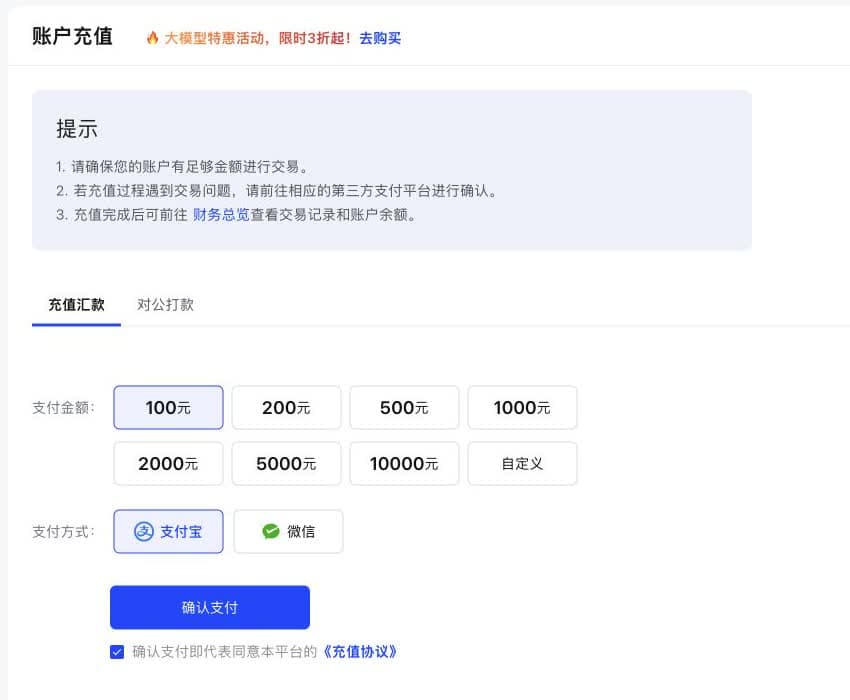
Enter a key name and confirm, then copy the key immediately.
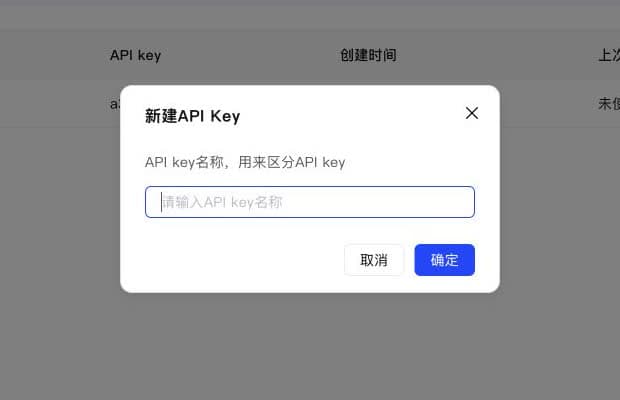
Complete organization verification and top up if needed, then create an API key for the default project.
Complete organization verification first. Choose an amount and payment method, accept the top-up agreement, and confirm payment.
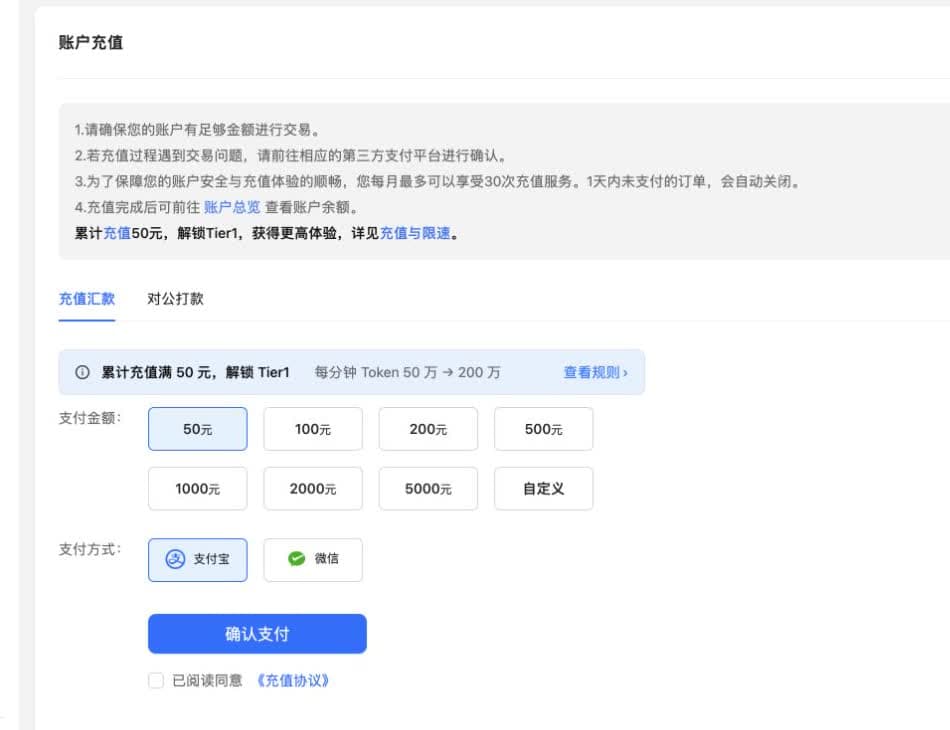
Enter a key name, choose the default project, and confirm creation. The full key is shown only once, so copy it immediately.
To jump to edits in WPS, also set WPS as the default app in the top-right corner of Ncurator's file view.
If the app will not open after installation, follow these steps.
Open the downloaded DMG, drag the app named “馆长” into Applications, and try to open it. Complete this first attempt even if macOS shows a security warning.
If Open Anyway is missing, try opening the app from Applications again, then return to Privacy & Security.
Apple's instructionsDownload the installer again from the official website to rule out an incomplete download. Move the app into Applications, open Terminal, then use either method below.
sudo xattr -r -d com.apple.quarantine "/Applications/馆长.app"Paste the complete command into Terminal and press Return.
Copy the following command into Terminal, add a space, and do not press Return yet:
sudo xattr -r -d com.apple.quarantineWhen Terminal asks for a password, enter your Mac login password and press Return. No characters appear while you type. When the command finishes, open the app again.
If Terminal cannot find the file, check that the app is named “馆长” and is in Applications. You can also drag it into Terminal to insert the correct path.
Send us the full error screenshot, your macOS version, your Ncurator version, and the Terminal output so we can investigate.
More capable models generally cost more per token, but can also complete more demanding tasks with better results.
Most of the author's testing uses DeepSeek V4.1 Flash, which is affordable and handles many everyday tasks. For harder tasks, choose a stronger model. If you are unsure, start with DeepSeek V4.1 Flash or ask Ncurator for help.
Tips:
Ncurator is designed to work in a human-like way. The internal name for this approach is Human, and future updates will continue in this direction.
It can make mistakes, just as people do. Give it enough context and clear instructions to help it produce the result you expect.
Ncurator's abilities largely depend on its available skills. Tasks outside those skills may be harder to complete, although it may sometimes find another way.
Create and select a partner in the workbench before sending a task. To narrow the sources for a task, use @ to reference a file, folder or web page. Without explicit references, it uses indexed folders and global web sources from Settings.